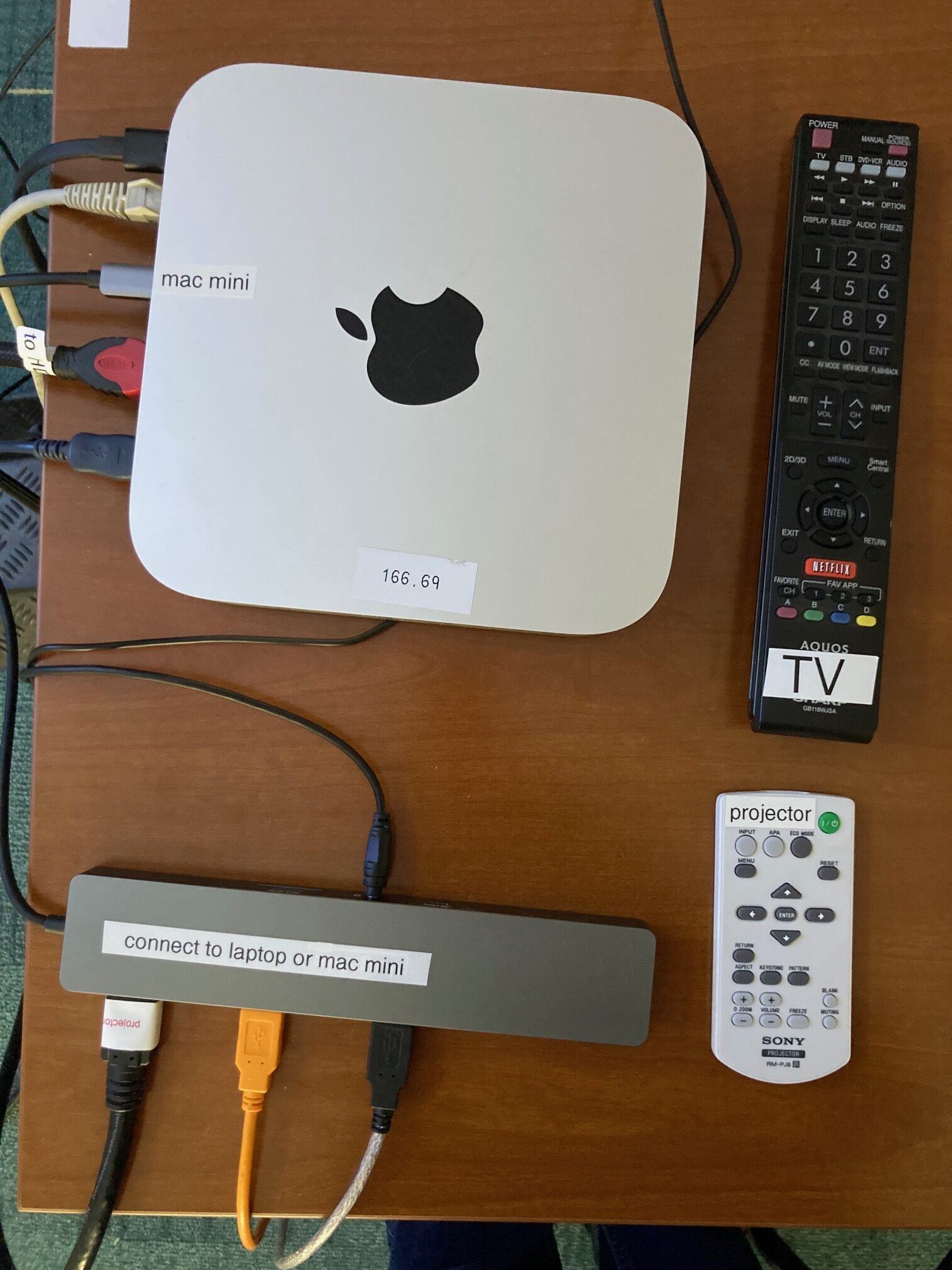
For presentations or videoconferencing in room B343, you may either use the room’s mac mini or your own laptop. To do so:
- Connect the USB-C hub either to the mac mini or to your laptop.
- Turn on the projector using the projector remote control labeled “Projector”.
- If using the mac mini, turn on the TV using the remote control labeled, “TV”.
- Use the following devices if desired:
- Speakers: KT_USB_Audio (this is how TesiraFORTE shows up when connected through the USB-C hub)
- Microphone: TesiraFORTE
- Camera: HD Webcam
Accessing the room
To reserve the room, use the room request form.
Room key: CD
Zoom Notes
One way to use Zoom is to connect to Zoom using the mac mini and then if people in the room or elsewhere wish to share a screen, they can connect to Zoom from their own laptop and share their screen. If you will be using your own laptop in this mode, one way to do it is to not log into Zoom on the mac mini: just connect using the meeting ID and code. Also connect to Zoom from your laptop, logging in as usual.
Another way to use Zoom is to not use the mac mini and instead just use your laptop. Connect the USB-C hub to your laptop and make sure the correct A/V devices are being used.
Standard A/V configuration
Things that are connected to the USB-C hub: the projector (HDMI), TesiraFORTE headphone plug, TesiraFORTE speakers (USB), webcam (USB).
Things that are connected to the mac mini: TV (HDMI), keyboard (USB), mouse (USB), ethernet cable.
The USB-C hub is connected to the mac mini or to a laptop.
Getting help
Contact help@physics.wisc.edu (608-263-2446) or Alex Squitieri.